Your Obsidian Vault Is a Database. Claude Code Is the Query Language.
How to run your entire professional life from an Obsidian vault with numbered folders, CLAUDE.md instructions, and Claude Code as the AI interface. Step-by-step setup.
Your professional life generates a constant stream of information: project specs, meeting decisions, article ideas, research notes, things you’ll need six months from now but can’t remember where you put. Most of it ends up scattered across Slack threads, random Google Docs, and files on your desktop you swore were temporary. You don’t need another app. You need one folder with a clear structure that holds everything, and an AI that knows how to work with it.
This article shows you how to build that system: an Obsidian vault with six numbered folders, a configuration file that teaches Claude Code your rules, and custom commands that automate your daily workflows. The vault is the database. Claude Code is the query language.
Six Folders. That’s the Whole System.
The system is six top-level folders with numbered prefixes:
00 Inbox/          <- capture everything, sort later
10 Journal/        <- daily notes, meetings, reflections
20 Projects/       <- active work with a deadline
30 Areas/          <- ongoing responsibilities, no end date
40 Brain/          <- reference material, book notes, research
90 System/         <- templates, archives, vault maintenance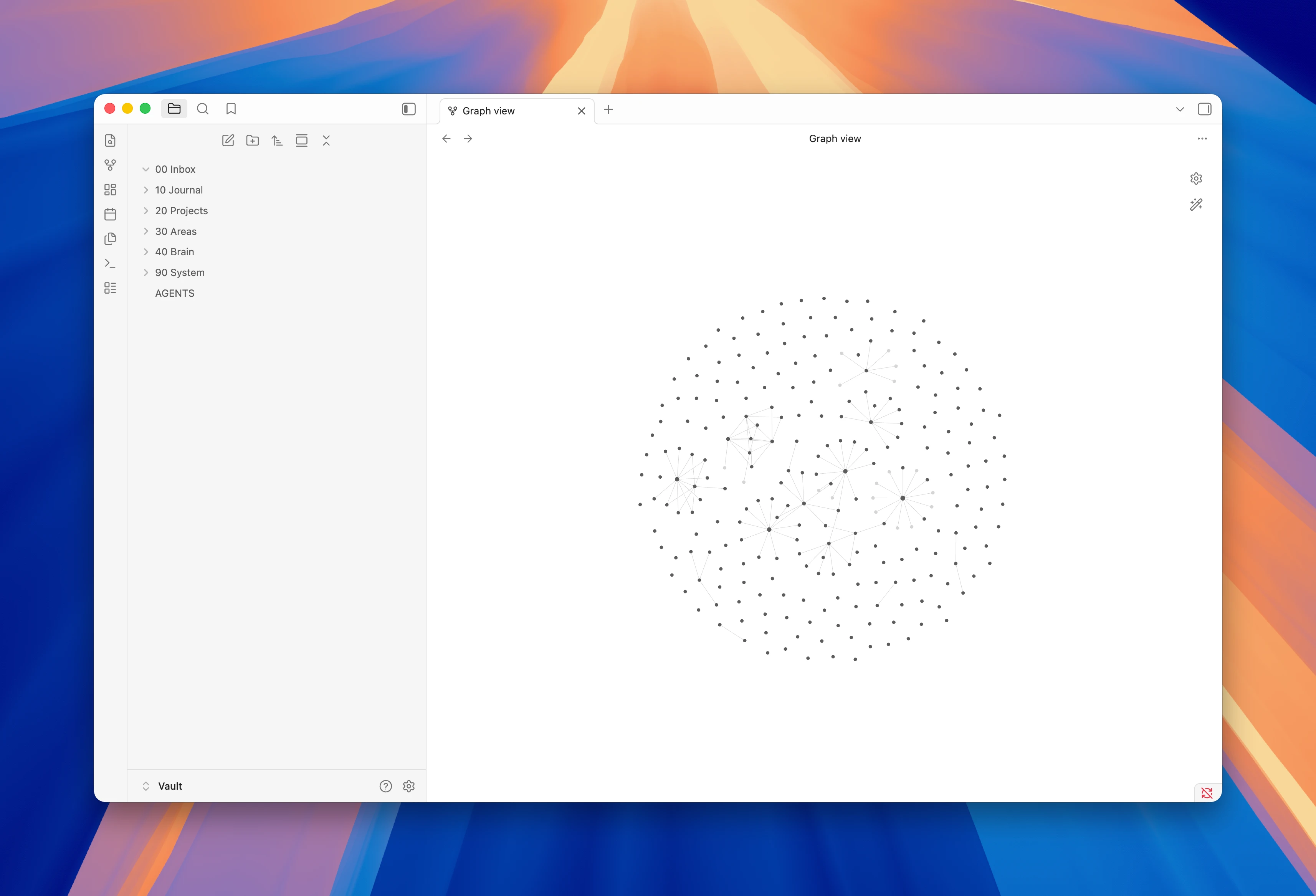
The numbers do two things. For you, they enforce a fixed sort order in every file browser and terminal listing. No drag-and-drop, no alphabetical surprises. For an AI agent, they create a predictable schema: it always knows that active work is in 20, reference material is in 40, and archived projects end up in 90.
The gap between 40 and 90 is intentional. Room for future categories without renumbering anything.
New information enters through 00 Inbox and flows to its destination. Daily logging goes to 10 Journal. Work with a deadline lives in 20 Projects until it ships, then moves to 90 System/Archive. Responsibilities with no end date stay in 30 Areas. Knowledge you want to keep long-term accumulates in 40 Brain.
That’s it. Every note you create fits in one of these six places.
Step 1: Create Your Vault Structure
Open a terminal and create the folders. You can also do this from Obsidian, but the terminal is faster.
mkdir -p ~/Vault/{00\ Inbox,10\ Journal,20\ Projects,30\ Areas,40\ Brain,90\ System/{Archive,Templates}}Open this folder as a vault in Obsidian. You now have the skeleton. Let’s fill it in.
Step 2: Understand the Project vs. Area Distinction
This is the single most important rule. Does it have a deadline? Then it’s a project. No deadline? It’s an area.
20 Projects/                          30 Areas/
├── Mobile App Redesign/  ← Q2 2026    ├── Freelance/     ← always active
├── Course Prep Spring/   ← May 2026   ├── Content/       ← weekly cadence
└── Client Migration/     ← Mar 2026   ├── Health/        ← ongoing
                                        └── Finances/      ← ongoing
When “Client Migration” ships, the entire folder moves to 90 System/Archive/Client Migration. The Freelance area stays put. Nothing is deleted; WikiLinks still resolve by filename.
| Type | Has deadline? | When done | Example |
|---|---|---|---|
| Project | Yes | Archive to 90 System/ | App launch, course semester, client project |
| Area | No | Stays in 30 Areas/ | Health, finances, freelance, content |
This sounds trivial, but it eliminates the “where does this go?” paralysis that kills most systems.
Step 3: Build Your Areas as Self-Contained Hubs
An area isn’t a folder of loose notes. It’s a structured hub. Here’s what a freelance consulting area might look like:
30 Areas/Freelance/
├── Index.md              ← dashboard linking everything
├── Services.md           ← offerings, rates, positioning
├── Pipeline.md           ← leads, proposals, status
├── Portfolio.md          ← case studies, evidence
├── Industry Research.md  ← sector analysis
├── Finances/             ← invoices, taxes
└── Templates/            ← proposal and contract templates
The Index file is the entry point. It links to everything else with WikiLinks. When you need to write a proposal, everything is one click away: your rates, your portfolio, your templates.
Step 4: Add CLAUDE.md and Give Your AI Context
This is where the magic happens. Create a CLAUDE.md file at the root of your vault.
touch ~/Vault/CLAUDE.mdThis file tells Claude Code how your vault works. Claude reads it before doing anything.
# Second Brain System Instructions

## Folder Taxonomy
- **00 Inbox**: Default landing zone for new notes.
- **10 Journal**: Daily notes. Format: YYYY-MM-DD.md.
- **20 Projects**: Active efforts with a deadline.
- **30 Areas**: Ongoing responsibilities.
- **40 Brain**: Reference material and research.
- **90 System**: Archives and templates.

## Areas
### Freelance
- **Path**: 30 Areas/Freelance/
- **Key files**: Services.md, Pipeline.md, Portfolio.md

### Content
- **Path**: 30 Areas/Content/

## Active Projects
### Mobile App Redesign (Deadline: June 2026)
- React Native app. Target: iOS + Android.

### Course Prep Spring
- Data Science course at university. 12 sessions.

## Operating Rules
1. New notes go in 00 Inbox unless destination is obvious.
2. Always use numbered prefixes for folders.
3. Suggest archiving completed projects to 90 System/Archive.
4. Use WikiLinks to connect notes across folders.
Now when you tell Claude “log the meeting with the client,” it creates 10 Journal/2026-03-10.md. When you say “draft a consulting proposal,” it pulls your rates from Services.md and case studies from Portfolio.md. The AI doesn’t guess; it follows your rules.
Step 5: Create Custom Commands for Repeated Workflows
Claude Code supports slash commands: markdown files in ~/.claude/commands/ that work as reusable prompts. This lets you automate any workflow you repeat.
mkdir -p ~/.claude/commandsHere’s a command that captures ideas while you’re working:
# Capture Idea

## Instructions
1. Read any attached screenshot.
2. Gather context: what project, what problem, what tech.
3. Create a note in 30 Areas/Content/pipeline/ with:
   - Title, tags, source project
   - Your description of the idea
   - Suggested angle for a future article
4. Confirm with a summary.
Save this as ~/.claude/commands/capture-idea.md. Now from any project, type /capture-idea with a screenshot and a one-liner. Claude creates the note, adds context from your current work, and updates your content dashboard.
You can build commands for anything: journal entries, weekly reviews, project status updates, meeting notes. Each one is a markdown file with instructions.
Step 6: Use the Daily Loop
A typical day with this system follows a simple pattern:
Morning:
  Open Claude Code in your vault
  "Create today's journal entry"  → 10 Journal/2026-03-10.md
  Review yesterday's entry for follow-ups

Working:
  Deep work happens outside the vault (code repos, tools)
  Specs and decisions → 20 Projects/[project]/
  Interesting problem? → /capture-idea for future content

Evening:
  "Update today's journal: shipped the auth module, blocked on API"
  Claude updates the journal and links to relevant projects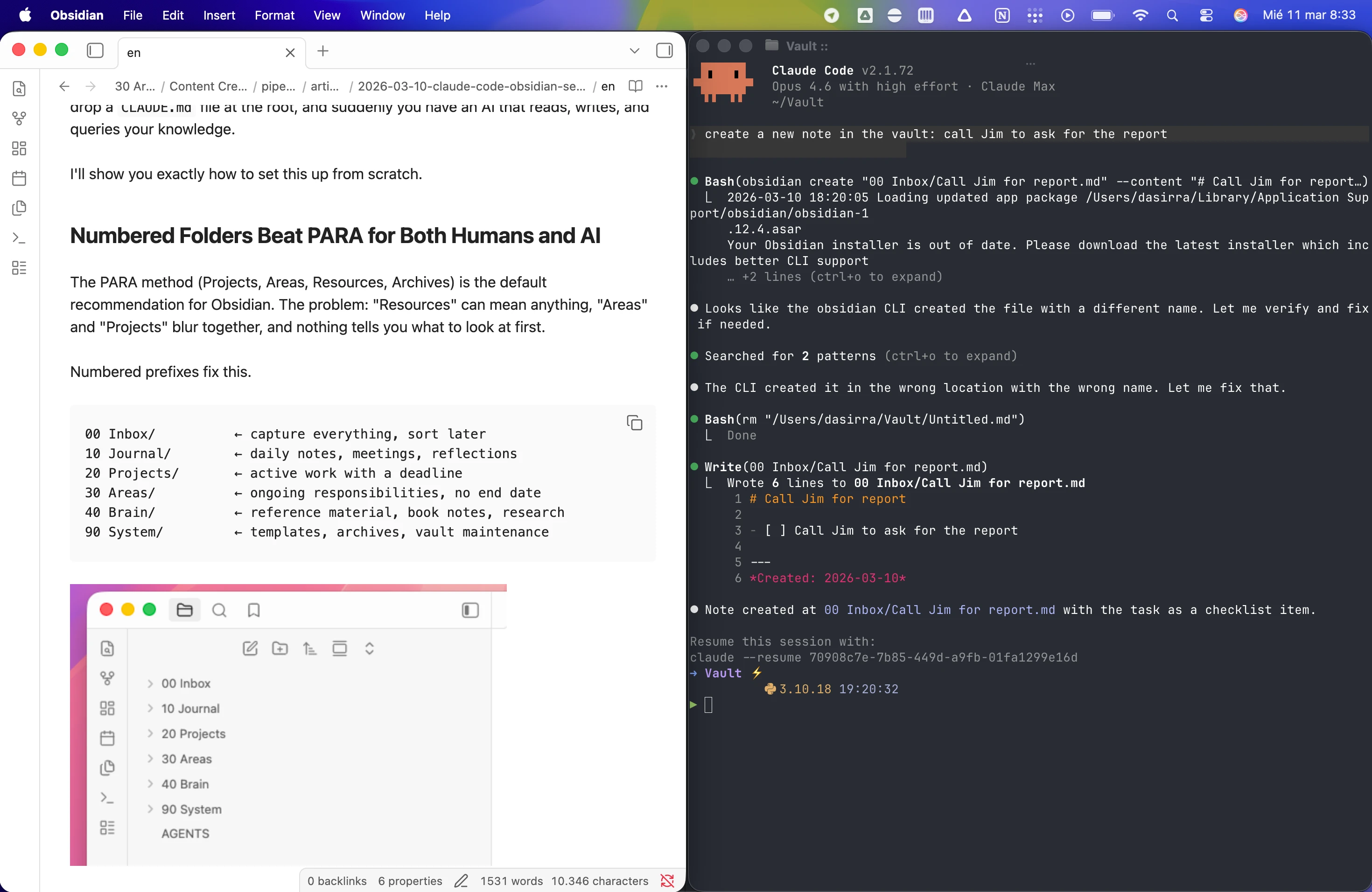
The vault is the connective tissue. Code lives in Git. Slides live in Google Drive. But every decision, every spec, every “I should write about this” moment flows through the vault.
WikiLinks Turn Isolated Notes Into a Network
Obsidian’s real killer feature isn’t the graph view. It’s WikiLinks. Type [[note name]] and you create a bidirectional connection.
## 2026-03-10

Decided to split the data pipeline into microservices.
See [[20 Projects/App Redesign/ADR-003]].

This follows the pattern from [[40 Brain/Event-Driven Architecture]]
which worked well in the [[90 System/Archive/Payment Gateway]] project.
Three notes, three different folders, one connected thread. When Claude reads the vault, it follows these links to build context. Ask it about the app architecture and it traces the reasoning back to the original research.
Archiving Is Graduating, Not Deleting
When a project ships, the folder moves to 90 System/Archive. Nothing is deleted. WikiLinks still work because Obsidian resolves them by filename, not path.
# In Claude Code:
"Archive the Client Migration project, it shipped today"

# Claude moves 20 Projects/Client Migration/ → 90 System/Archive/Client Migration/
# Updates any references if needed
# Logs the archival in today's journal
The operating rules in CLAUDE.md encode this behavior. Claude watches for project completion signals and suggests archiving.
Why Obsidian Over Notion?
The obvious question. Notion is polished, cloud-native, and has a massive ecosystem. For a second brain powered by an LLM, though, the architecture difference matters more than the feature list.
LLM integration: files vs. API calls
Your Obsidian vault is a folder of markdown files. Claude Code reads them with the same file tools it uses for source code. No adapter, no middleware, no extra token overhead. Ask it to “find all projects mentioning payments” and it runs a grep. Ask it to “create today’s journal” and it writes a file. Every operation is a direct read or write.
Notion stores everything behind an API. To give an LLM access, you need an MCP server that translates between the LLM and Notion’s endpoints. Every read becomes a tool call: the LLM sends a structured request, the MCP server hits the API, parses the response, and returns it. Every write is another round trip. This adds token cost on both sides of the call (the tool schema, the request payload, the response parsing) and introduces latency. For a quick lookup it’s fine. For a workflow where the LLM reads five notes, cross-references them, and writes a sixth, the overhead compounds.
Obsidian also recently shipped a CLI in its latest desktop release, which lets LLM agents trigger Obsidian-native actions (like opening notes or running plugins) through slash commands. This is optional. The core advantage remains: your notes are plain files that any tool can operate on without a translation layer.
Sync: built-in vs. bring your own
Notion wins here with zero effort. Everything lives in the cloud. Open any device, your notes are there.
Obsidian requires you to solve sync yourself. Two options:
- Obsidian Sync (paid, ~$4/month): end-to-end encrypted, works across all platforms, maintained by the Obsidian team. The simplest path.
- Syncthing (free, self-hosted): open-source, peer-to-peer file sync. No cloud server involved. You install it on each device, point it at your vault folder, and it keeps them in sync over your local network or the internet. More setup, but no subscription and no third party touching your data.
Both work. The tradeoff is convenience vs. control.
Data ownership and portability
This is the underlying reason for the architecture difference. Your Obsidian vault is a folder. You can zip it, move it, back it up, version it with Git, or open it with any text editor. If Obsidian disappears tomorrow, you still have markdown files.
Notion data lives in Notion. You can export to markdown, but the export loses databases, relations, rollups, and formatting nuances. The richer your Notion setup, the harder it is to leave.
For a system designed to last years and accumulate knowledge, portability is not a nice-to-have. It’s the foundation.
When Notion is the better choice
If your second brain is primarily collaborative (shared team wikis, project boards with multiple editors), Notion’s real-time collaboration is hard to beat. Obsidian is a single-player tool. Shared vaults exist but feel bolted on.
If you never plan to integrate an LLM and want a polished UI out of the box, Notion delivers more with less setup. Notion also includes built-in AI in its paid plans, so you get summarization, drafting, and Q&A over your workspace without any configuration.
The argument for Obsidian is specific: you want an LLM to be a first-class citizen in your knowledge system, you want your data in files you control, and you’re comfortable with a small amount of initial setup to get sync working.
FAQ
Do I need Obsidian specifically?
No. The vault is just a folder of markdown files. Obsidian adds WikiLinks and graph view, but Claude Code works with raw files. VS Code, iA Writer, or any markdown editor works. The key is CLAUDE.md, not the editor.
Does Claude Code modify my notes without asking?
Only when you invoke a command. It won’t touch existing notes unless you explicitly ask. The operating rules in CLAUDE.md define guardrails, and Claude follows them.
How much setup time does this take?
The folder structure takes five minutes. CLAUDE.md takes 15-30 minutes depending on how many projects and areas you have. Custom commands take 5-10 minutes each. Under an hour total for a system that pays for itself daily.
What happens if I stop using Claude Code?
Nothing breaks. The vault is plain markdown with YAML frontmatter. CLAUDE.md becomes just another document. You lose the AI interface, but the organization, links, and knowledge remain. That’s the point of building on open formats.
Is this overkill for someone with one project?
Start with four folders: 00 Inbox, 10 Journal, 20 Projects, 90 System. Add areas and brain when you need them. The numbered prefixes work at any scale, from a simple journal to a full professional operating system.
A second brain that just stores notes is a filing cabinet. One that understands your context, follows your rules, and acts on your instructions is something closer to the name.